Quick answer
What is role-based access control in business software, and who should see and edit what?
Role-based access control in business software means each user gets a role, such as owner, manager, staff or accountant, and each role can only see and change what that job needs. The owner sees everything. Staff see their own work. An outside CA gets view or export access to accounts only.
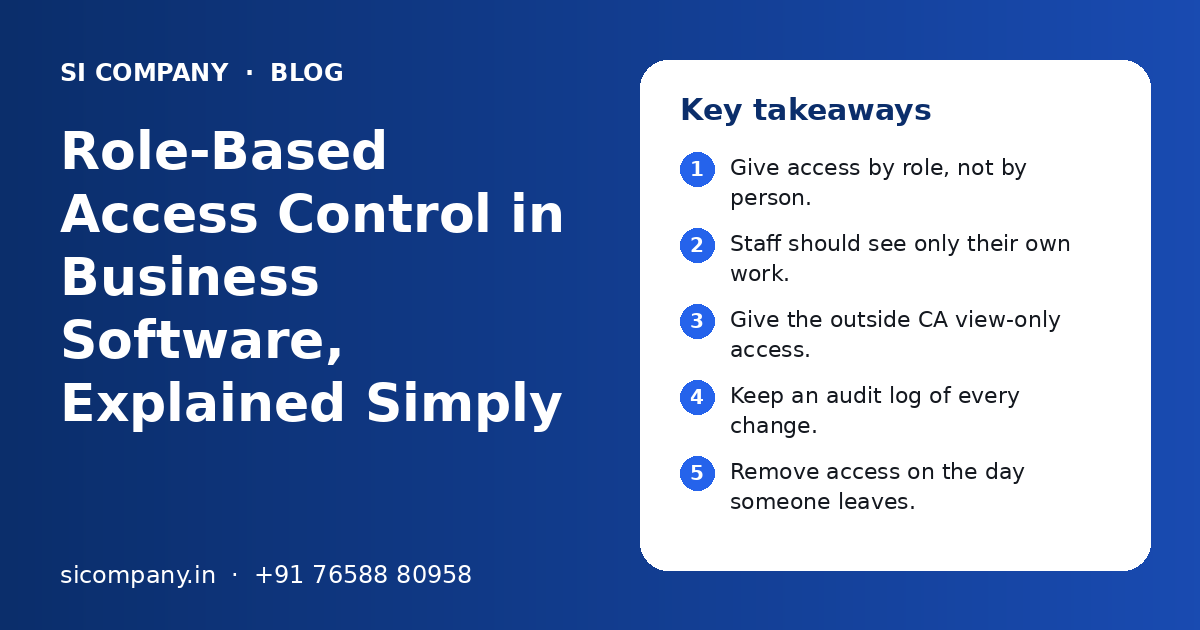
Key takeaways
- Give access by role, not by person.
- Staff should see only their own work.
- Give the outside CA view-only access.
- Keep an audit log of every change.
- Remove access on the day someone leaves.
- Review all roles every few months.
What is role-based access control in business software?
Role-based access control in business software is a simple rule: you do not give rights to each person one by one. You create roles, give each role a fixed set of rights, and then put each user into a role.
Most good systems allow this. A CRM controls who sees which leads. An ERP controls who can change stock or approve a purchase. A billing tool controls who can edit or cancel an invoice.
The basic rights in most systems
- View: can open and read a record.
- Add: can create a new record, like a lead or an invoice.
- Edit: can change an existing record.
- Delete or cancel: can remove a record or cancel an invoice.
- Approve: can say yes to a discount, purchase or refund.
- Export: can download data to Excel or PDF.
Why does a small business need user roles at all?
User roles protect your data, reduce mistakes and make it clear who did what. Even a team of ten people needs them.
Many small businesses start with one shared login. Everyone uses the same user name and password. It feels easy. But it causes real problems as the team grows.
- You cannot tell who changed a price or deleted a lead.
- A junior staff member can see profit margins and salaries.
- A sales person who leaves can still log in from home.
- Someone exports your full customer list with phone numbers.
- A wrong edit to stock or an invoice goes unnoticed for weeks.
- You change the shared password, and the whole team is locked out.
Who should see and edit what? A sample role table
A good starting point is five roles: owner, manager, staff, accountant and outside CA. You can add more later, but most small teams can start with these.
| Role | Can see | Can edit | Should not do |
|---|---|---|---|
| Owner or admin | Everything, including reports and settings | Everything, including roles and users | Share the admin login with anyone |
| Manager | Their team's leads, orders and reports | Assign work, approve discounts within a limit | Change system settings or other teams' data |
| Staff or sales person | Their own leads, tasks and customers | Add notes, update status, create quotes | Export full lists or delete records |
| In-house accountant | Invoices, payments, purchase and ledgers | Record payments, make credit notes | Change sales targets or user roles |
| Outside CA | Sales, purchase, GST and payment reports | Usually nothing; view and export only | Edit invoices or see customer chats |
| Store or warehouse staff | Stock, item list, delivery notes | Stock in, stock out, dispatch entries | See prices, margins or customer dues |
Use the rule of least access
Give each role the smallest set of rights it needs for daily work. If a person needs more for a short time, give it for that task and then remove it. It is easier to add a right later than to undo damage from too much access.
How should access work in a CRM, ERP and billing tool?
The idea is the same in each system, but the risky data is different. In a CRM it is customer contacts. In an ERP it is stock and purchase. In a billing tool it is invoices and payments.
In a CRM
Sales staff should see their own leads. Team leads should see their team. Only the owner or sales head should see all leads and export them. This stops a leaving sales person from taking the full customer list. Our CRM solutions page explains how leads are assigned and tracked.
In an ERP
Purchase staff can raise a purchase order, but a manager approves it above a set amount. Store staff enter stock in and out, but cannot change opening stock. Branch users see only their branch. These rules keep stock numbers honest.
In a billing or GST tool
Billing staff create invoices. Only a senior person can cancel an invoice or issue a credit note. Discounts above a limit need approval. Once an invoice is filed in a GST return, it should be locked. Our billing software development page covers GST invoices and payment tracking.
In HR and payroll
Salary, bank details and personal records are the most private data in a company. Only HR and the owner should see them. Managers can approve leave but should not see salaries of their team. See our HRM software page for how HR data is kept separate.
How do you give an outside CA or accountant safe access?
Give your outside CA their own login with view and export rights for accounts and GST reports only. Do not share the owner login, and do not give edit rights to invoices.
- 1
Create a separate CA role
Name it clearly, such as 'Outside CA'. Do not reuse the owner or accountant role.
- 2
Allow only the reports they need
Sales register, purchase register, GST summaries, payment reports and ledgers are usually enough.
- 3
Turn off edit and delete
The CA should not change invoices. If a correction is needed, your accountant makes it.
- 4
Limit the date range if possible
Some systems let you show only the current or last financial year.
- 5
Use a login with OTP
Ask for two-step login for outside users, so a leaked password alone is not enough.
- 6
Remove access when the work ends
If you change your CA firm, close the old login the same day.
If your system links with Tally, the CA can often work in Tally while your team uses the main software. Our older post on software for CA firms shows how CA firms look at client data from their side.
Need help with your project?
Talk to the SI Company team. Free first call, simple advice, clear quote.
What is an audit log, and why does it matter?
An audit log is a record of who did what, and when, inside the software. It shows every add, edit, delete, approval and export with the user name and time.
Roles decide what people can do. The audit log shows what they actually did. You need both. With an audit log, you can answer questions like 'Who changed this rate?' or 'Who deleted that lead?' in a few minutes.
| Action to log | Why it matters |
|---|---|
| Price, rate or discount change | Finds wrong or unapproved discounts |
| Invoice cancel or credit note | Protects GST records and revenue |
| Stock adjustment | Explains stock mismatch in the godown |
| Lead or customer delete | Stops quiet loss of sales data |
| Bulk export to Excel | Shows who downloaded customer lists |
| User and role changes | Shows who gave extra rights to whom |
| Login from a new device | Helps spot misuse of a password |
Check the log in a short weekly review, or set alerts for risky actions like bulk export or invoice cancel. A custom dashboard can show these alerts on one screen for the owner.
What should happen when an employee leaves?
Remove their access on their last working day, move their open work to another person, and check the audit log for unusual exports in their last few weeks.
- Deactivate the user in the CRM, ERP, billing tool and HR system.
- Do not delete the user; deactivate it, so their history stays.
- Move open leads, tasks and customers to another staff member.
- Sign them out of the mobile app on all devices.
- Change any shared passwords they knew, such as a Wi-Fi or vendor portal.
- Remove them from WhatsApp groups that share customer data.
- Close their company email or forward it to a manager.
- Check the audit log for large exports or deletes before they left.
If your team uses Google Workspace with single sign-on, closing one account can close access to many tools at once. This makes exits faster and safer.
Ready-made tool or custom software: which gives better access control?
Most ready-made tools have standard roles that work for common cases. Custom software lets you build roles that match your exact process, such as branch-wise access or approval limits by amount.
Before you buy or build, ask the vendor these questions:
- Can I create my own roles, or only use fixed ones?
- Can I control view, edit, delete and export separately?
- Can I limit users to a branch, region or team?
- Is there an audit log, and can normal users change it?
- Can I deactivate a user without losing their records?
- Does it support OTP or two-step login?
If your current system cannot do this, a rebuild or upgrade may help. Our custom software solutions page explains how we plan roles from the first meeting.
What mistakes should you avoid with user roles?
The biggest mistakes are giving everyone admin rights, sharing logins and never reviewing roles. Each one is easy to fix once you know about it.
- Making every user an admin because it is quicker during setup.
- Creating a new role for every person, until nobody knows what each role does.
- Letting staff export full customer or price lists without need.
- Turning off the audit log to make the system faster.
- Forgetting test or demo users that still have full access.
- Giving a vendor or developer admin access and never closing it.
Plan a short role review every few months. Print the list of users and roles. Ask each manager to confirm who still needs what. Remove anything extra.
If you need help with ongoing checks, our software maintenance and support team can run these reviews with you.
How can SI Company help you set up roles and access?
We map your team and process first, then design roles, approval limits and an audit log that fit. We can add this to your current system or build it into new software.
SI Company is powered by Shivah Web Tech, with 11+ years of work, a 25+ in-house team and 500+ projects. Our team works from Mohali, Punjab, and serves businesses across India. Office hours are Monday to Friday, 9:30 to 6:30 IST, with 24x7 emergency support for urgent issues.
Want to check who can see what in your software today? Contact us to book a free call. You get a clear quote after the call.
Frequently Asked Questions
What is role-based access control in simple words?
It means you give rights to roles, not to each person. For example, a sales role can see and update its own leads. A manager role can see the whole team. An owner role can see everything. When a new person joins, you just put them in the right role, and they get the right access.
Should my CA have a login to our billing software?
Yes, a separate login is safer than sending files or sharing your own password. Give the CA view and export rights for sales, purchase, GST and payment reports only. Turn off edit and delete. Use two-step login if your software supports it, and close the login if you change your CA firm.
How many user roles does a small business need?
Most small teams can start with four to six roles: owner, manager, staff, accountant, outside CA and maybe store staff. Too few roles give people too much access. Too many roles become hard to manage. Start small, watch how people work, and add a role only when there is a clear need.
What should I do first when an employee leaves?
Deactivate their login in every system on their last day. Do not delete the user, so their history stays. Move their open leads and tasks to another person. Sign them out of the mobile app. Then check the audit log for large exports or deletes in their last few weeks.
What is the difference between an admin and a manager role?
An admin can change settings, create users and change roles. A manager runs a team: they see their team's data, assign work and approve within limits. A manager should not be able to change system settings or give themselves more rights. Keep admin rights with the owner and one trusted backup person.
Is an audit log really needed in a small company?
Yes. Even in a small team, mistakes and disputes happen. An audit log shows who changed a rate, cancelled an invoice or deleted a lead, with the date and time. It saves time when you check problems, and staff take more care when they know actions are recorded.
Can access control be added to software we already use?
Often, yes. Many ready-made tools have role settings that are simply not set up. For custom software, roles and an audit log can usually be added as an upgrade. The work depends on how the system was built and how many screens it has. You get a clear quote after a free call.